

That Google Email Might Be Fake (Here’s How to Tell)

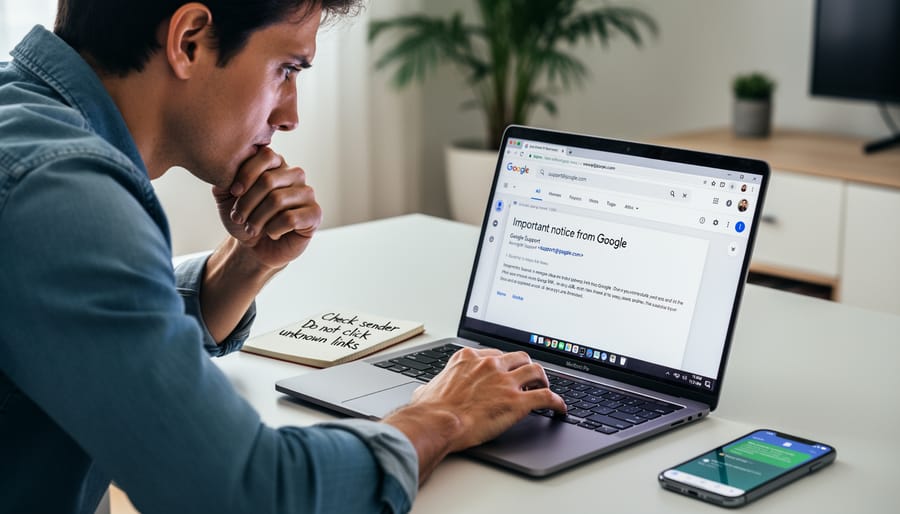
Look, phishing operators target SEOs because we’re worth targeting. We sit on Search Console verifications, Business Profile ownership, and Ads billing, the exact stack that lets a hijacker inject spam into a trusted domain. So when an email arrives from [email protected], the question isn’t “is Google reaching out”, it’s “did Google actually send this, or did someone with a mail server and an afternoon spoof the header and bet I’d click before I checked”. Most of these messages are real. The rest, trivial to fake. This guide walks the verification steps that separate the two in about thirty seconds (give or take).
What [email protected] Actually Is
Google routes its transactional and security mail through a single authenticated sender so users learn to recognize it. Gmail pushes login alerts and password-reset confirmations from this address. Business Profile sends review and verification notifications from it. Ads uses it for billing receipts and policy notices. YouTube ships copyright claims and Community Guidelines warnings the same way. Workspace admins see provisioning and quota mail from the same envelope. The centralization is convenient for users and, predictably, a giant target for anyone running a phishing kit.
Quick vocabulary
- Spoofed sender
- A forged
From:address. Trivial to set on any mail server, which is why it proves nothing on its own. - Lookalike domain
- A near-identical hostname (
gooogle.com,google-secure.com) registered to host the phishing landing page. - SPF
- Sender Policy Framework. A DNS record listing which servers are allowed to send mail for a domain. A failed SPF means the sending IP wasn’t authorized.
- DKIM
- DomainKeys Identified Mail. A cryptographic signature proving the message body wasn’t altered in transit and originated from the claimed domain.
- DMARC
- The policy that ties SPF and DKIM results together and tells receivers what to do when authentication fails. PASS on all three is the bar.
- Urgency tell
- Time-pressured language (“verify in 24 hours or lose access”). A reliable phishing fingerprint because real Google notifications don’t issue ultimatums.
- GSC pretext
- A phishing storyline built around a fake Search Console alert (“ownership verification failed”, “new property added”). High-value because GSC access lets attackers inject spam into a verified site.
Legitimate Uses by Google Services
The legitimate traffic from this address is broad. Gmail uses it for security alerts, password reset confirmations, and account recovery. Business Profile dispatches review notifications and listing updates. Ads sends billing receipts, campaign performance summaries, and policy notices. YouTube delivers copyright claims and channel notifications. Workspace admins receive provisioning, quota, and admin-alert mail through the same envelope. Real messages share three traits in my experience: they reference a specific action that actually happened on your account, they link to google.com properties, and they never ask for passwords or payment details inside the email.
Why Scammers Love Impersonating This Address
Email spoofing is genuinely easy. Honestly, anyone with a VPS and an afternoon can configure a mail server to display any From: address they want. Well, almost any. The display name lies, the sender address lies, and the only fields that don’t lie are buried in the headers. The [email protected] format is particularly potent bait because it signals automation and authority. Users expect no-reply mail from large platforms, so skepticism drops. Add Google’s brand trust on top, and the address turns into the perfect mask. (I’ve watched phishing operators rotate through five different Google-themed pretexts in a single quarter, each one slightly more polished than the last, the last one almost fooled a colleague who runs incident response for a living.)
The display name lies. The sender address lies. The only fields that don’t lie are buried in the headers.
How to Verify Whether Your Email Is Legitimate
Check the Full Email Header
Headers are where the message either confesses or holds up. In Gmail, open the message, hit the three-dot menu, pick “Show original.” Outlook calls it “View message source.” Apple Mail tucks it under View, Message, All Headers (or did, last time I checked, the menu wording shifts every few releases). What you’re looking for is three lines: SPF, DKIM, and DMARC. Legitimate Google mail shows PASS on all three. Anything less, even DKIM neutral with SPF pass, deserves a second look.
Pro tip
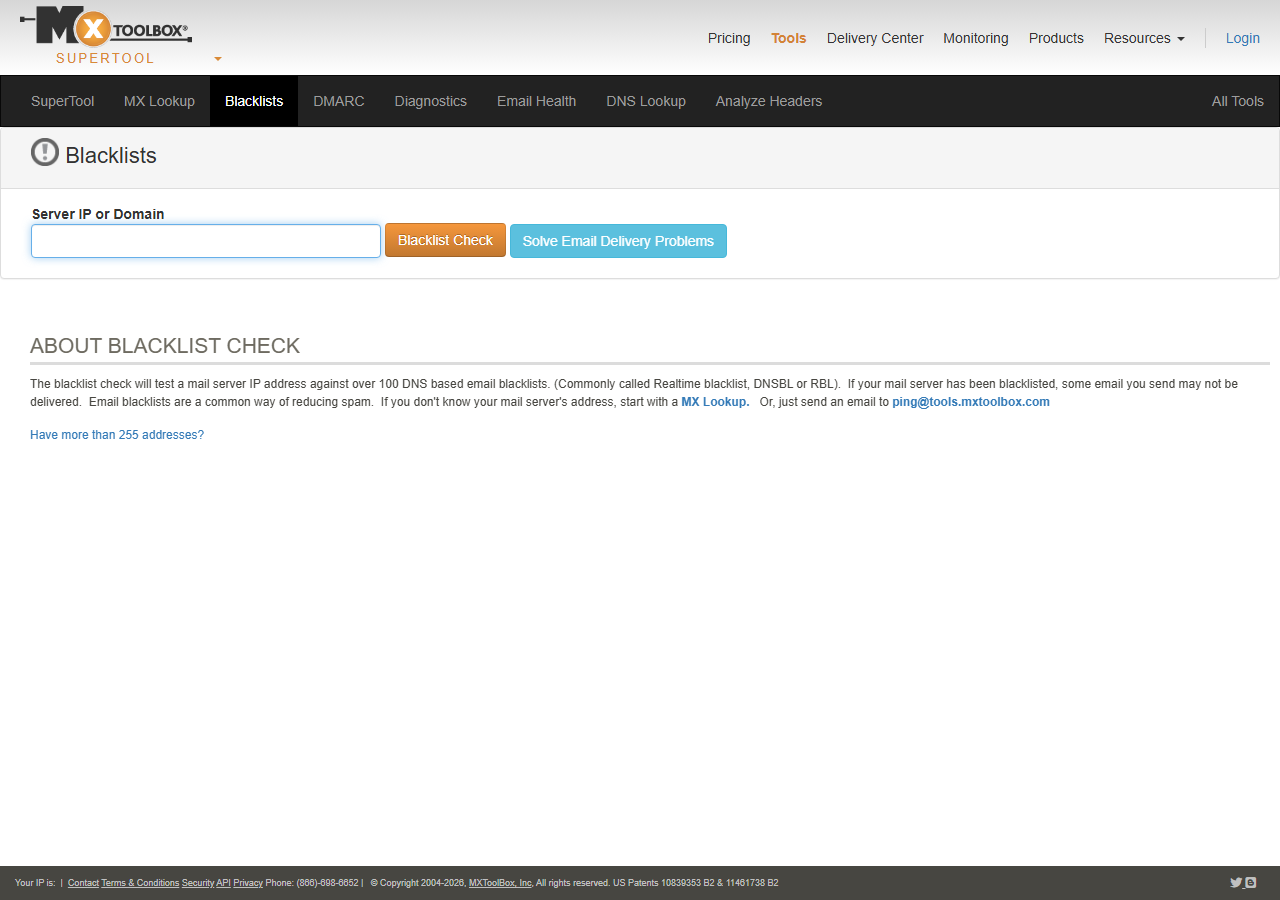
Open mxtoolbox.com in another tab and run the originating IP through their SuperTool while you’re reading the header. If the IP doesn’t resolve to a Google-owned AS, the message did not come from Google regardless of what the From: line says. Five extra seconds, near-zero false positives.
Red flags inside the header include mismatched From: and Return-Path: domains, which authentic Google mail aligns. If the message originated from unfamiliar servers or any authentication marker fails, delete it. The header also exposes the actual sending IP, which you can sanity-check against Google’s published ranges when you want absolute certainty (the MxToolbox SuperTool is the fastest path).
Examine Links Before You Click
Before clicking, hover. Always. Most browsers and email clients show the actual destination in the status bar. Real Google mail routes through google.com, goo.gl, or Google-owned properties like youtube.com and gmail.com. The decisive test is the registrable domain immediately before the TLD: it must be google. Not google-verify.com, not accounts-google.com, not google.support.
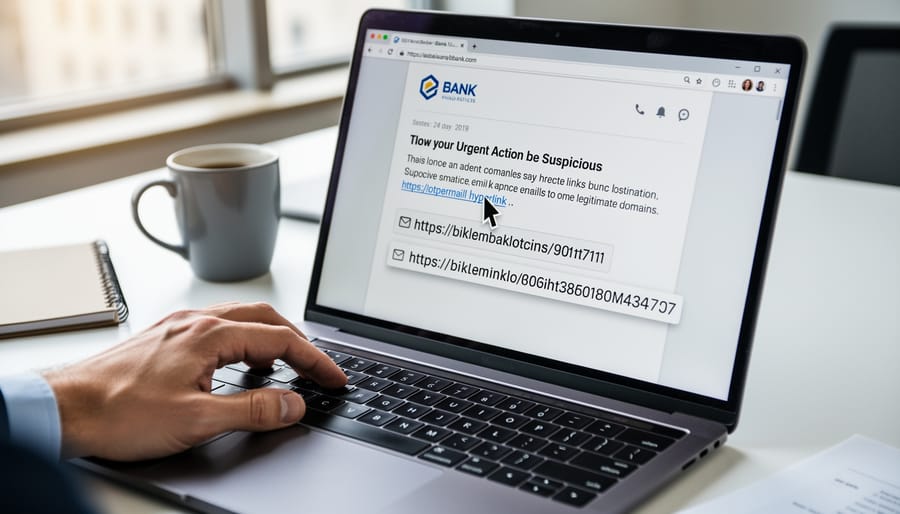
Watch for common phishing patterns: extra words or hyphens before the domain (secure-google.com), misspellings (gooogle.com, googIe.com with a capital i), and unfamiliar TLDs (google.net, google.co.uk when you’re US-based). Scammers will also embed legitimate-looking anchor text over a malicious URL, the text says accounts.google.com while the href points somewhere else entirely. If the preview shows a bit.ly or tinyurl shortener in an unexpected context, treat it as hostile. Google rarely uses third-party shorteners for account notifications.
Watch for
Internationalized domain names (IDN) that render visually identical to google.com but use Cyrillic or Greek characters in the punycode. Modern browsers warn on most of these, but the warning is easy to miss inside an email preview. When in doubt, type google.com into a fresh tab manually.
Look for Google’s Security Indicators
Legitimate Google mail is predictable. Boring, actually. Real messages arrive from @google.com domains, render the Google logo correctly, and use professional formatting without misspellings or stilted phrasing. Official messages never demand urgent payments through wire transfer or cryptocurrency. They won’t threaten immediate account closure unless you click a link right now. Truth is, the more urgent the email reads, the less likely it’s real, Google’s tone in transactional mail is dry to the point of boring (which, come to think of it, I already said, but it bears repeating).
Cross-check claimed activity by logging into your Google account through a manually typed URL, never an email link. Security settings and Recent activity tell you whether the event the email describes actually happened. If the message mentions a purchase, check Google Play or Google Store order history independently. Real notifications correspond to actions visible in the dashboard, always.
Note
Generic greetings like “Dear User” instead of your actual account name are a near-certain phishing marker. Google’s transactional system has your name on file. It uses it.
The Verify-Before-Action Checklist
Verify before you act
google.[email protected], then delete. Don’t reply, don’t unsubscribe.Four steps. About thirty seconds end-to-end once you’ve drilled it a few times. Maybe forty if you’re new. In my experience the slowest part is the header inspection on the first run, after that, muscle memory takes over and the workflow collapses into a glance at the auth lines plus a hover on the action button.
Legitimate vs Phishing Signals
| Signal | Legitimate Google email | Phishing attempt |
|---|---|---|
| Authentication | SPF, DKIM, DMARC all PASS | One or more fail, neutral, or missing entirely |
| Link destinations | Hover resolves to google.com or Google-owned property |
Lookalike domain, shortener, or unrelated TLD |
| Greeting | Uses your actual account name | “Dear User”, “Dear Customer”, or no greeting at all |
| Tone | Dry, transactional, references a specific past action | Urgent, threatening, deadline-driven, vague specifics |
| Asks | Notifies, links to dashboard for any action | Requests password, payment, or credentials inline |
| Dashboard cross-reference | Event also visible in the signed-in activity log | No corresponding entry in Security or property history |
Google Reviews and Business Profile Emails: Special Considerations
Legitimate Review Notifications Look Like This
Real review notifications carry consistent markers. The sender displays as “Google My Business” with the underlying [email protected] address. The subject reads “New review of [Your Business Name]” or “Customer reviewed [Your Business Name] on Google.” The body shows the reviewer’s name (or “A Google user”), star rating, review text if any, and a direct link into the Business Profile dashboard.
In the dashboard, the same notification appears under the Reviews tab with identical content, time stamp, and reviewer details. That cross-reference is your fastest verification: the notification email and the dashboard entry have to match. Authentic emails use plain formatting with the Google logo, minimal graphics, and buttons labeled “See review” or “Reply to review” linking only to business.google.com domains. The footer holds standard privacy and terms links, never payment requests or urgent security warnings. Real notifications arrive within minutes of a review posting (usually). Not days or weeks later.
Fake Review Scams Targeting Business Owners
Scammers routinely impersonate [email protected] to target business owners with fake review scams and credential theft. The common patterns are: a fake “your Business Profile received a negative review” email pushing the recipient to a spoofed login that harvests credentials, a “paid removal service” offer trading on legitimate reputation anxiety, or a “verify your ownership now” pretext that asks for the OAuth code from a real Google prompt the attacker just triggered. (I’ve seen the third variant work on otherwise careful people, the OAuth code looks like the kind of thing you might paste back to a support agent.)
Watch for
Any email or call asking for a Google verification code “to confirm the call is real” or “to sync your account.” Google never asks for the code outside the prompt it generated. If someone requests it, the request itself is the attack.
Legitimate Google notifications about reviews appear in the Business Profile dashboard and never request payment for review management or ask you to verify credentials through email links. Navigate directly through a browser instead of clicking embedded links, run the header check on suspicious senders, and remember that Google’s actual support never cold-contacts businesses about reputation services or demands immediate payment to resolve review issues.
Why This Matters More Since Google’s Spam Updates
The Link Between Email Phishing and SEO Manipulation
Phishing that steals legitimate Google account credentials creates a direct pathway to ranking manipulation. Once attackers gain access to a compromised account, they inject malicious content into trusted domains, post link spam on previously reputable sites, and flood Business Profiles with fake reviews designed to either boost competitor rankings or sabotage rivals. The pattern is now well-documented across security and SEO research from outlets like Moz’s spam coverage and Ahrefs’s research on link-spam patterns.
This explains why recent core algorithm updates penalize sites with sudden spikes in low-quality backlinks or user-generated content. When phishers compromise a business owner’s email, they typically access Search Console, Business Profile, and the website’s CMS in the same session, enabling coordinated manipulation across multiple properties. Google has been explicit that its spam policies treat link schemes designed to manipulate rankings as a violation regardless of how the access was obtained.
Protecting Your Digital Assets
Verifying email from [email protected] protects the digital properties that actually drive search visibility. Search Console, Business Profile, and Ads all send critical notifications from this address, password resets, ownership verification, policy warnings, suspension alerts. Falling for a spoofed version hands attackers direct access to verified website data, the ability to delist a business location, or control over advertising budgets. The damage compounds: a compromised Search Console lets bad actors inject spam into a site through property settings, which tanks rankings, a hijacked Business Profile redirects customers to competitors or scam sites, and legitimate emails ignored out of uncertainty might contain time-sensitive manual-action warnings.
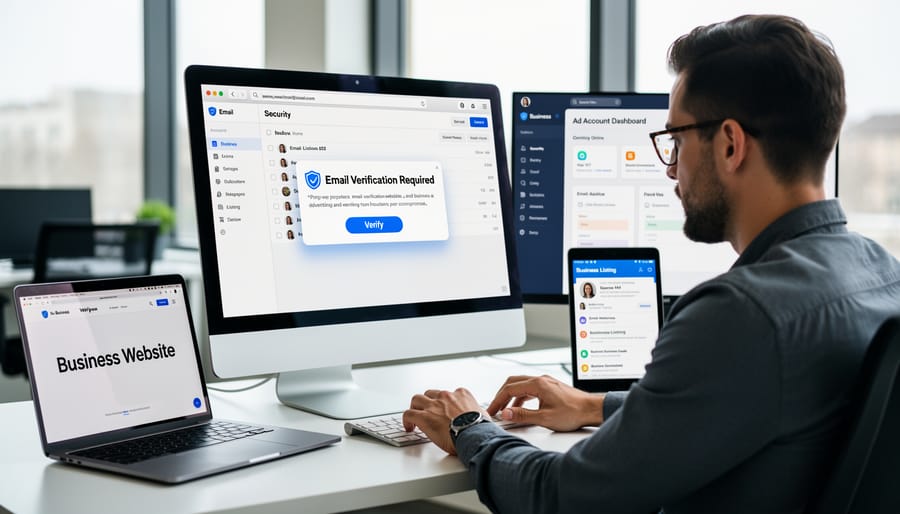
So, the five-second verification checks above, sender authentication, URL inspection, account cross-reference, create a reliable filter for acting confidently on real Google communications while blocking the spoofs that put search presence at risk. Well, five to thirty seconds, depending on the day. For most teams, it’s the single highest-leverage operational security habit you can build into the link-building and on-page workflow.
Trust vs Verify: When to Apply the Full Protocol
✓
Trust on sight (after a hover check)
- ›Routine 2FA prompts you just triggered
- ›Ads billing receipts matching your card
- ›Review notifications you can match in the dashboard
- ›Workspace quota warnings with normal sender alignment
- ›YouTube notifications on a channel you actively post to
!
Verify the full protocol
- ›Any “ownership verification failed” pretext on Search Console
- ›Login alerts from a country you didn’t travel to
- ›Policy violation notices threatening suspension
- ›Anything asking for a Google verification code “to confirm”
- ›Urgent payment demands or cryptocurrency requests
The split isn’t paranoia versus laziness. It’s bandwidth allocation. Most Google mail is mundane and resolves on a five-second hover. The mail that warrants the full protocol is the mail that, if it were real, would change the security posture of an account that controls a verified web property. For those, slow down. (I learned this the hard way after almost dismissing a real Search Console manual-action notice as phishing because the tone matched what I’d been training myself to flag.)
What to Do If You Receive a Suspicious Email
If a message claiming to be from [email protected] raises doubt, the protocol is short.
Stop. Don’t click links or open attachments. Phishing relies on impulse.
Verify independently. Fresh tab, type google.com, sign in, check Security activity and recent alerts. If the dashboard doesn’t confirm the event the email describes, the email is suspect.
Report it. Forward to [email protected], then delete the original. Google’s filtering systems learn from these reports and the protection compounds across users.
Enable two-factor authentication if you haven’t. Visit your Google Account security settings and turn on 2-step verification. Phishing-resistant methods (passkeys, hardware security keys) are the strongest tier, SMS is the weakest but still better than password-only.
Find official help through the Google Account Help Center or gmail.com/support. Don’t search “Google support phone number,” scammers buy ads impersonating support lines and the top result frequently leads to a fake call center.
Try it this week
Audit the next five Google notifications in your inbox. Header-check all five.
-
1
Open each one and pull “Show original.” Confirm SPF, DKIM, and DMARC all show PASS. Note which ones don’t. -
2
Hover every link in each message. Verify the registrable domain ends ingoogle.comor a known Google-owned property. -
3
Enable 2-step verification (passkey preferred) on every Google account tied to a verified web property, Search Console, Business Profile, Ads.
Thirty seconds per email today buys back hours of incident response later, the kind of math that compounds the longer you do it.
Yes, [email protected] is legitimate, but only when headers, SPF records, and authentication markers check out. Verify every time. The diligence protects more than the inbox, it reinforces the trust signals Google uses to filter spam and rank quality content across the web. When you confirm sender authenticity before clicking, you’re practicing the same verification habits that keep search results reliable for everyone.
Related guides
- Why Fake Google Reviews Keep Slipping Through, how review-spam tactics overlap with Business Profile credential theft.
- Why Google’s Core Updates Keep Devaluing Your Links, the link-spam patterns that follow compromised SEO accounts into search results.

