

That Google Email Might Be Fake (Here’s How to Tell)

Check the full sender address in your email header—legitimate Google notifications come from @google.com domains, but scammers often use lookalike addresses like @google-noreply.com or @gooogle.com that add extra characters. Hover over any links before clicking to reveal the true destination URL; authentic Google emails direct you to google.com subdomains, not third-party sites or suspicious strings of numbers. Cross-reference the email content with your recent Google account activity by logging in directly through your browser—never through email links—to see if the notification matches actual security alerts, password changes, or service updates you initiated.
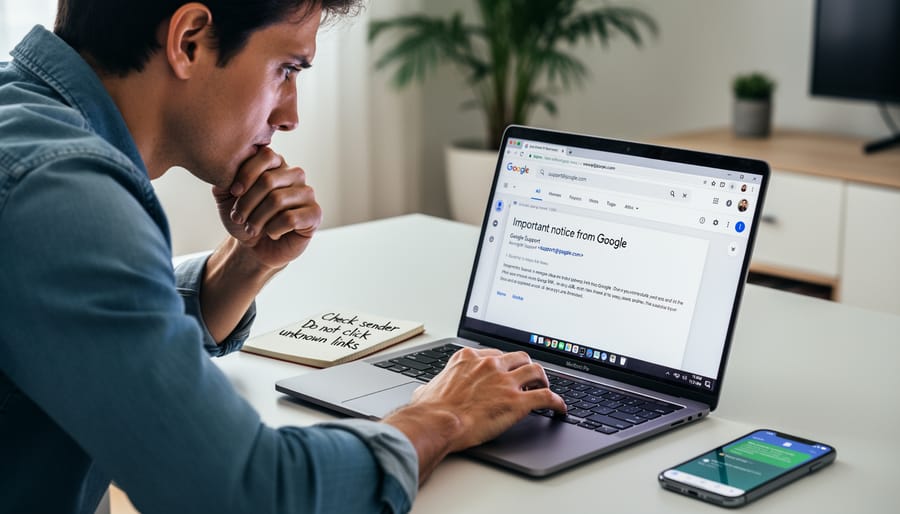
Most [email protected] emails are legitimate automated messages from Google services, but the address is trivially easy to spoof. Phishing attacks exploit user trust in familiar sender names while hiding malicious domains in the technical details. Understanding how to verify sender authenticity protects you from credential theft, malware, and account compromise—skills that matter whether you’re managing personal Gmail or enterprise Google Workspace deployments.
What [email protected] Actually Is
Legitimate Uses by Google Services
Google legitimately sends automated notifications from [email protected] across several core services. Gmail uses it for security alerts, password reset confirmations, and account recovery messages. Google Business Profile dispatches review notifications, listing updates, and verification requests through this address. Google Ads sends billing receipts, campaign performance summaries, and policy violation notices. YouTube delivers copyright claim notifications, channel membership confirmations, and Community Guidelines warnings. Google Workspace accounts receive admin alerts, user provisioning confirmations, and storage quota warnings from this sender.
These messages share common traits: they reference specific actions you took recently, link directly to google.com domains, and never request passwords or payment details via email. The address appears identical across all services because Google centralizes transactional emails through a single authenticated domain, making verification straightforward but also creating a single point attackers attempt to mimic.
For: Anyone managing Google accounts, business owners with online listings, advertisers tracking campaigns, or content creators monitoring channel activity.
Why Scammers Love Impersonating This Address
Scammers exploit a fundamental weakness: email sender addresses are trivial to forge. Email spoofing requires no special tools—just configuring a mail server to display any “from” address you choose. The [email protected] format is particularly effective bait because it signals automation and authority. Users expect no-reply addresses from large platforms, so their skepticism drops. Add Google’s brand trust, and the address becomes a perfect mask for phishing attempts. Attackers know most people won’t scrutinize headers or verify sender authenticity when an email looks official and uses familiar branding. The combination of technical ease and psychological leverage makes this address format a persistent phishing vector.
How to Verify Whether Your Email Is Legitimate
Check the Full Email Header
Email headers contain authentication data that proves whether a message truly came from Google’s servers. In Gmail, open the message, click the three-dot menu, and select “Show original.” In Outlook, right-click the email and choose “View message source.” In Apple Mail, select View > Message > All Headers.
Look for three authentication markers: SPF (Sender Policy Framework), DKIM (DomainKeys Identified Mail), and DMARC (Domain-based Message Authentication). Legitimate Google emails will show “PASS” for all three. These protocols verify that the sending server is authorized to send mail on behalf of google.com and that the message hasn’t been tampered with in transit.
Red flags include mismatched “From” and “Return-Path” domains—authentic Google emails align perfectly. If the header shows the message originated from unfamiliar servers or authentication checks fail, delete it immediately. Headers also reveal the actual sending IP address, which you can cross-reference against Google’s published server ranges if you want absolute certainty.
Examine Links Before You Click
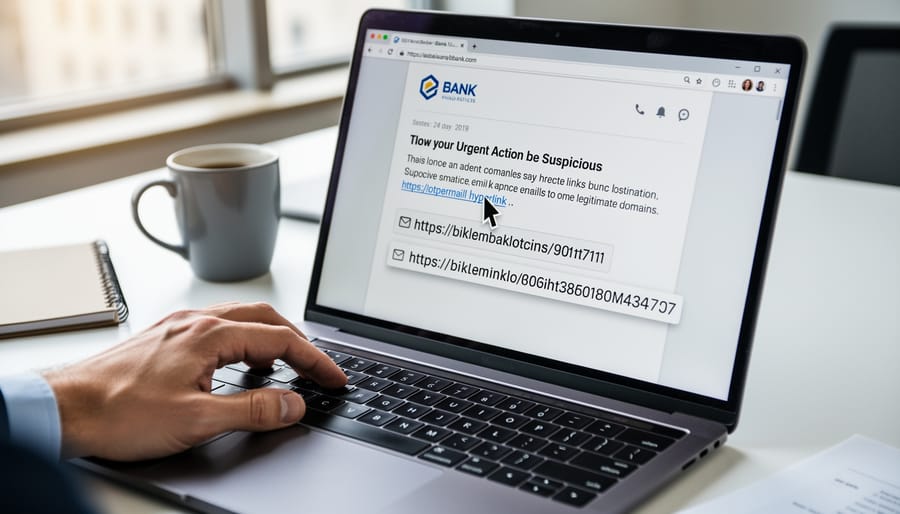
Before clicking any link in an email claiming to be from Google, hover your cursor over it without clicking—most browsers and email clients display the actual destination URL in the bottom corner or a tooltip. Legitimate Google emails route through domains ending in google.com, goo.gl (Google’s URL shortener), or google-owned properties like youtube.com or gmail.com. The crucial test: the core domain immediately before .com must be “google”—not google-verify.com, google-account-security.com, or similar variations.
Watch for common phishing patterns: extra words or hyphens before the domain (secure-google.com), misspellings (gooogle.com, googIe.com with a capital i), or unfamiliar extensions (google.net, google.co.uk when you’re US-based and didn’t expect UK correspondence). Scammers often embed legitimate-looking text in the clickable part while the actual URL points elsewhere. If the preview shows a shortened link from bit.ly, tinyurl, or similar services in an unexpected context, treat it as suspicious—Google rarely uses third-party shorteners for account notifications. When in doubt, navigate to your Google account directly by typing google.com into your browser rather than following email links.
Look for Google’s Security Indicators
Legitimate Google emails follow predictable patterns. They arrive from @google.com domains, display Google’s logo correctly, and use professional formatting without misspellings or awkward phrasing. Official messages never demand urgent payments via wire transfer or cryptocurrency, and they won’t threaten immediate account closure unless you click a link right now.
Cross-check any claimed activity by logging directly into your Google account (type the URL yourself; never use email links). Navigate to Security settings and Recent activity to see if the event the email describes actually happened. If the email mentions a purchase, check your Google Play or Google Store order history independently. Real Google notifications will always correspond to actions visible in your account dashboard.
Red flags include generic greetings like “Dear User” instead of your name, pressure tactics (“Verify within 24 hours or lose access”), and links that hover-preview to non-Google domains. When uncertain, delete the email and access your account directly—if Google truly needs your attention, authenticated warnings will appear when you sign in.
Google Reviews and Business Profile Emails: Special Considerations
Legitimate Review Notifications Look Like This
Genuine review notifications from Google arrive with consistent markers. The sender displays as “Google My Business”
In your dashboard, the same notification appears under the “Reviews” tab with identical content, time stamp, and reviewer details—this cross-reference is your quickest verification method. Legitimate emails use plain formatting with the Google logo, minimal graphics, and buttons labeled “See review” or “Reply to review” that link to business.google.com domains only. The footer contains standard Google privacy and terms links, never payment requests or urgent security warnings. Authentic notifications arrive within minutes of a review posting, never days or weeks later, and always match what appears in your verified Business Profile account.
Fake Review Scams Targeting Business Owners
Scammers routinely impersonate [email protected] to target business owners with fake review scams and credential theft. Common schemes include emails claiming your Google Business Profile has received a negative review, prompting immediate action through a spoofed link that harvests login credentials. Other variants offer paid services to remove fake reviews or boost ratings, exploiting legitimate concerns about online reputation. These phishing attempts rely on urgency and fear to bypass critical thinking. Legitimate Google notifications about reviews appear in your Business Profile dashboard and never request payment for review management or ask you to verify credentials via email links. Always navigate directly to your Google account through a browser rather than clicking embedded links. Check sender authentication using email header analysis, and remember that Google’s actual support channels never cold-contact businesses about reputation services or demand immediate payment to resolve review issues.
Why This Matters More Since Google’s Spam Updates
The Link Between Email Phishing and SEO Manipulation
Phishing attacks that steal legitimate Google account credentials create a direct pathway to search ranking manipulation. Once attackers gain access to compromised accounts, they inject malicious content into trusted domains, post link spam on previously reputable sites, and flood Google Business Profiles with fake reviews designed to boost competitor rankings or damage rivals.
This pattern explains why Google’s recent core algorithm updates increasingly penalize sites with sudden spikes in low-quality backlinks or user-generated content. When phishers compromise a business owner’s email, they often access Google Search Console, Google My Business, and website CMSs simultaneously, enabling coordinated SEO manipulation across multiple properties.
The spam fighting infrastructure behind [email protected] emails serves dual purposes: protecting individual users from credential theft while simultaneously defending search quality from the downstream pollution that follows successful phishing campaigns. Each compromised account becomes a potential vector for injecting manipulative signals into Google’s ranking systems.
For site owners, this connection underscores why email security directly impacts search performance. A single phishing breach can trigger manual actions, algorithmic penalties, or review bombing that takes months to reverse, even after securing the compromised account.
Protecting Your Digital Assets
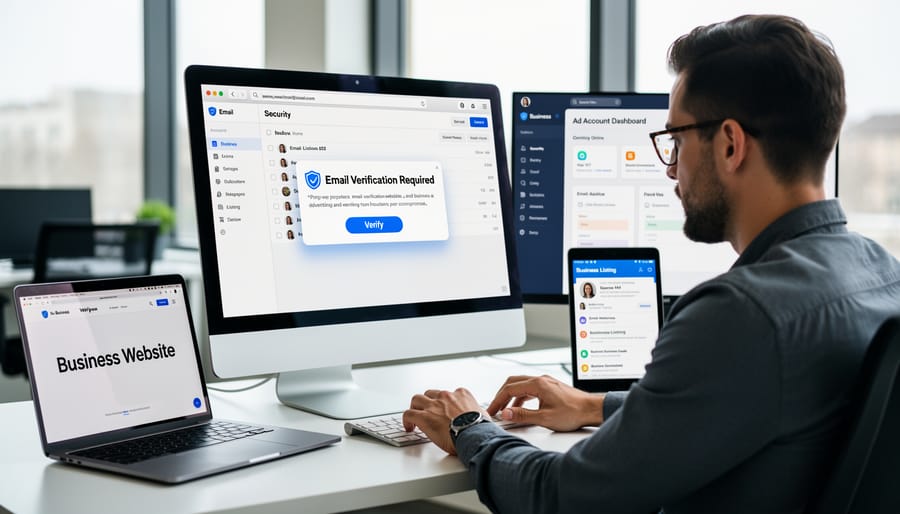
Verifying emails from [email protected] protects the digital properties that determine your search visibility. Your Google Search Console, Google My Business profile, and Google Ads account all send critical notifications from this address—password resets, ownership verification requests, policy warnings, suspension alerts. Falling for a spoofed version hands attackers direct access to your verified website data, the ability to delist your business location, or control over advertising budgets. The damage compounds: a compromised Search Console lets bad actors inject spam into your site through property settings, tanking rankings. A hijacked Business Profile can redirect customers to competitors or scam sites. Meanwhile, legitimate emails you ignore because you’re unsure might contain time-sensitive warnings about manual actions or verification deadlines. The five-second verification checks outlined above—sender authentication, URL inspection, account cross-reference—create a reliable filter that lets you act confidently on real Google communications while blocking the fakes that put your search presence at risk.
What to Do If You Receive a Suspicious Email
If an email claiming to be from [email protected] raises doubt, take these immediate steps:
Stop. Don’t click any links or download attachments in the suspicious email. Phishing attempts rely on impulsive clicks.
Verify independently. Open a new browser tab, type google.com directly into the address bar, and sign in to your account. Check your security activity, recent alerts, and account settings for any legitimate notifications Google sent you.
Report it. Forward phishing emails to [email protected], then delete the original from your inbox. Google’s systems learn from these reports to protect others.
Enable two-factor authentication (2FA) if you haven’t already. Visit your Google Account security settings and activate 2-step verification—this prevents account compromise even if someone obtains your password.
Find official help through the Google Account Help Center or gmail.com/support. Avoid searching for “Google support phone number,” as scammers buy ads impersonating support lines.
Why this matters: Taking five minutes to verify now prevents hours recovering from a compromised account later. Google never asks for passwords via email and always provides account alerts within your signed-in dashboard.
For: Anyone who treats email skeptically and wants a clear protocol for verification without technical expertise.
Yes, [email protected] is legitimate—but only when headers, SPF records, and authentication markers check out. Verify every time. Your diligence protects more than your inbox: it reinforces the trust signals Google uses to filter spam and rank quality content across the web. When you confirm sender authenticity before clicking, you’re practicing the same verification habits that keep search results reliable for everyone. Treat security emails with the scrutiny they deserve, authenticate the source using the methods outlined above, and you’ll navigate Google’s communications confidently while contributing to a healthier, more trustworthy internet ecosystem.

